The Figma Community brings together designers, developers, educators, and even enthusiasts who share hundreds of diverse web projects:
- Wireframes
- Web mockups
- Design systems
- Illustrations
- Icons
- Web design
- Mobile design
- UI Kits
- Plugins and Widgets
- etc.
Each of these projects is easily duplicable for free. For every step of your web project, you can start using free templates to download from the Figma Community with just one click. Beyond duplicating, anyone can share their work by becoming a member of the Figma community. You can also find thousands of projects within our community!
In this article, we will show you how to join the Figma community so you can start sharing your web projects and designs.
Step 1: Log in to your Figma account
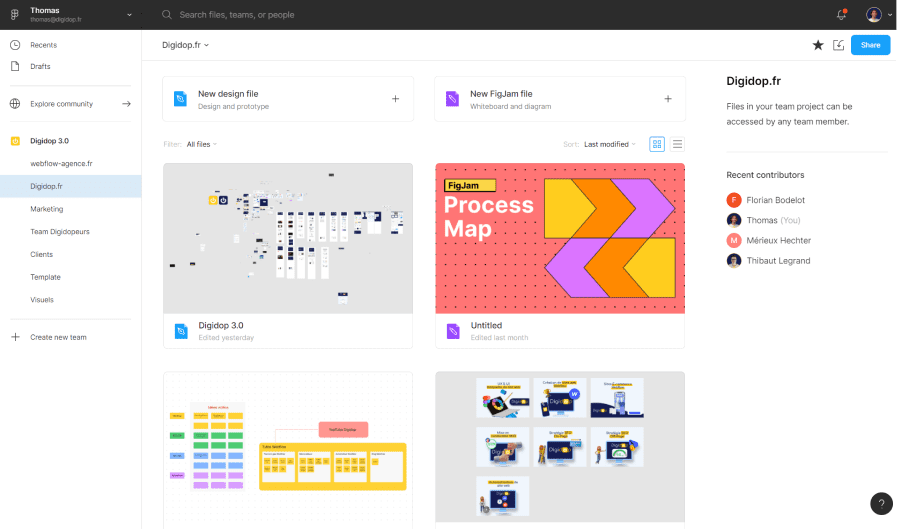
Start by logging in to your Figma account. If you don’t have an account yet, you can easily create a Figma account using this link. By default, all new Figma accounts are private, meaning that all the projects you create are only visible to you and the people you choose to share them with. Once you are logged in, do not enter a Figma project; stay on your dashboard.
Step 2: Access your settings
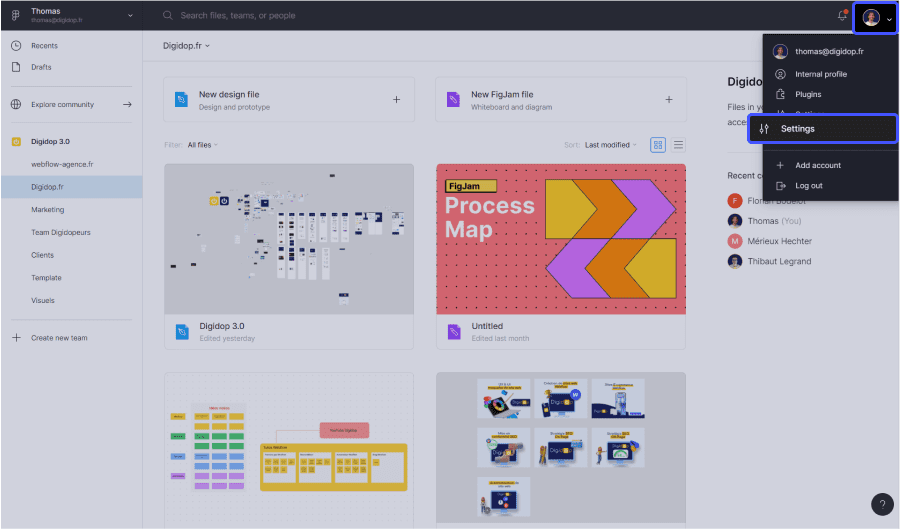
Access your Figma settings from your dashboard like this:
- Click on your icon / photo in the top right corner
- Click on “Settings” to access your Figma settings
Step 3: Create your first public profile
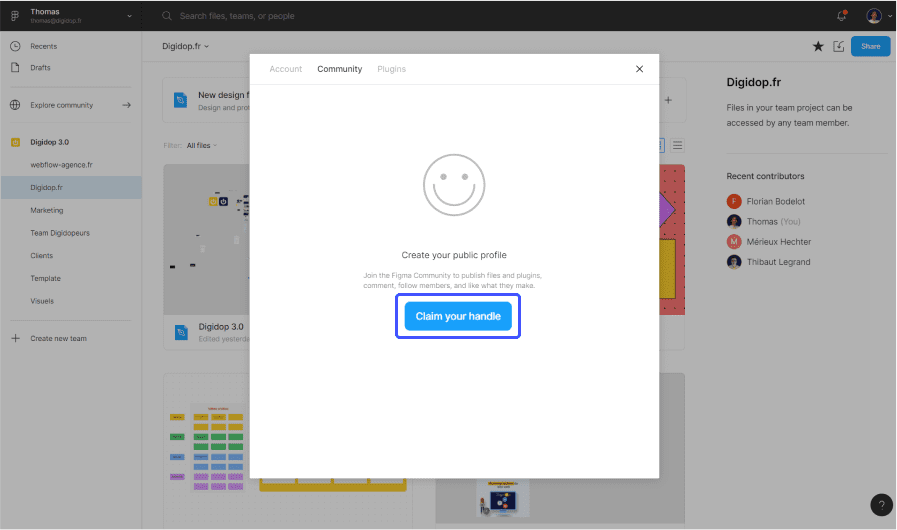
Your Figma settings will open as a pop-up.
- Click on the “Community” tab to access your Figma community settings. You haven’t created a public account yet, but Figma welcomes you with a smile :)
- Click on “Claim your handle” to create your first public account on Figma.
Step 4: Set your public profile name
You're almost there!
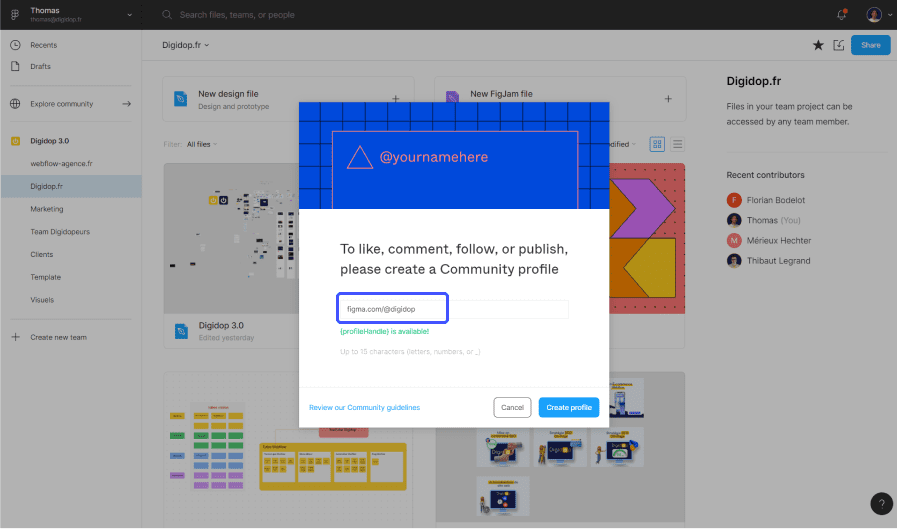
- Now choose a name for your public Figma profile. This name will appear in your public URL for easy identification.
For example, for our Digidop web agency, we creatively named our public Figma account Digidop. You can easily find all our Figma projects from the URL: https://www.figma.com/@digidop. Similarly, your public profile will be named https://www.figma.com/@YourName - Then click on “Create profile”
Step 5: Personalize your profile and share with the Figma community
Congratulations, you are now part of the Figma Community! Now, all that's left is to start sharing your projects with the web community: your mockups, designs, plugins, or widgets.
See our article on this topic 👇
How to share a project with the Figma Community?
.webp)



.webp)