Figma is a web design tool that offers numerous features for creating web mockups, visuals, and other designs. However, the Figma design interface is a 2D environment, and while some features (shadows, gradients, opacity, etc.) allow you to create volume and relief effects, the tool is not designed for 3D.
Nevertheless, the power of Figma does not solely rely on its built-in features. Figma actually has a vast array of plugins that push the boundaries of your designs even further. The advantage of plugins is that they offer the functionalities of another tool while being compatible with your Figma design.
Here, we will use the Vectary 3D Elements plugin to integrate 3D visuals into Figma.
1. Add the Vectary 3D Elements Plugin
From the Figma community, navigate to the Vectary 3D Elements plugin.
Click "Install" to add the plugin to your Figma account.

2. Open the Plugin in Figma
Once installed, go to your Figma file and open the plugin:
- Right-click on the canvas
- Click on "Plugins"
- Search for the Vectary 3D Element plugin

3. Choose a 3D Visual
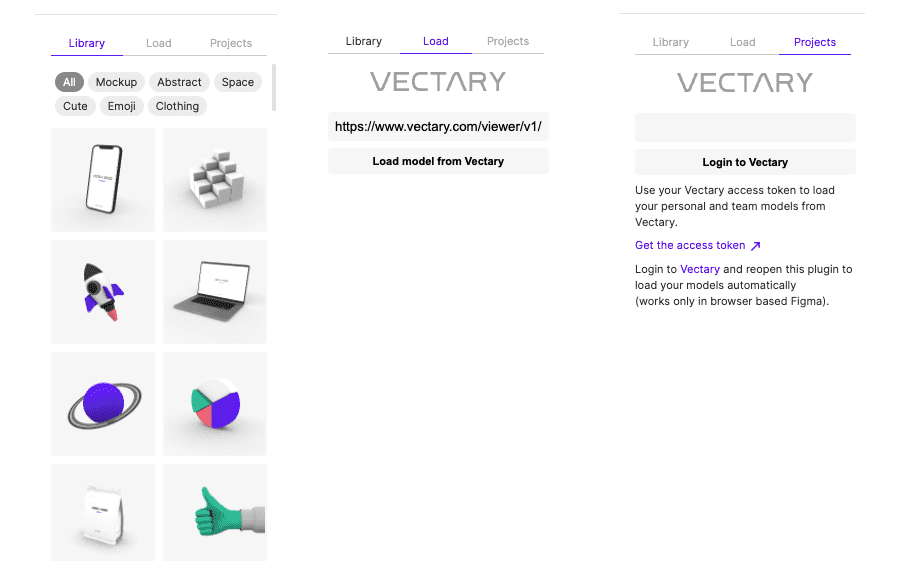
Vectary 3D Element allows you to access 3D mockups in various ways:
- From the free 3D library of the plugin
- From a download link for Vectary 3D Elements
- From your Vectary 3D Element account
4. Customize the 3D Mockup
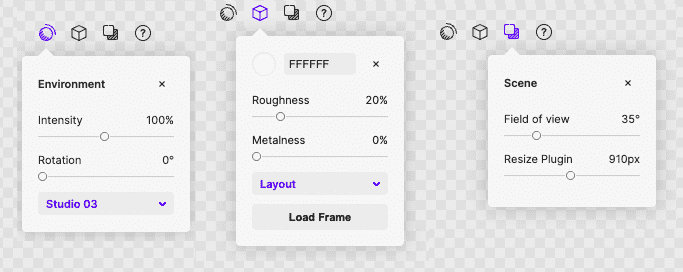
Once you have selected your 3D mockup, you can customize it directly from the plugin. The tool provides you with numerous features to:
- Manage the environment of the 3D element
- Manage the material
- Customize the staging of the mockup
- Add shadows
- Use Figma frames to customize the surfaces of the visual
- Modify the colors
5. Integrate the 3D Illustration into Figma
Once your 3D visual is customized, you can click "Export Image" to integrate it directly into your Figma file. All that's left is to incorporate it into your mockup!
.webp)


.webp)