Webflow provides the ability to customize collection items through conditions or even a dynamic page. You can create variants for each of your items based on specific criteria.
Here is an article about the conditional visibility feature in Webflow.
Today, we will focus on conditional visibility related to dates in Webflow. To illustrate this, we will demonstrate how to customize the style of an item that is upcoming (starting in the future).
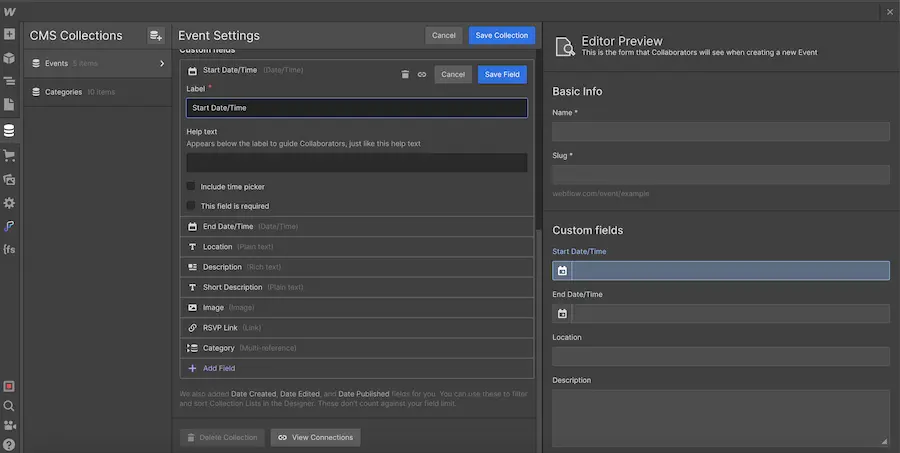
Step 1: Add a date field to your collection
Just like the article on hiding an item after or before a certain time, we will add a date field to our collection. In our example, we will add a start date for our event. We then populate our collection with new items (in our case, new events).
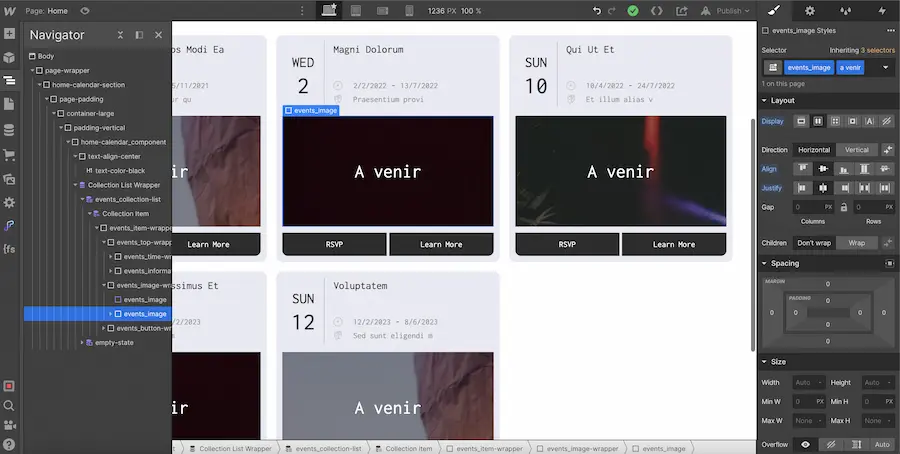
Step 2: Create a style for your items with conditional visibility
In our case, we will simply add a div block with an overlay and text inside indicating that the event is upcoming. However, you can customize your item as you wish.
Initially, your style will be applied to all of your items, but we will add conditional visibility to all elements that we want to be visible only during a specific time frame.
In our example, we will add conditional visibility to our div block containing the text "upcoming".
Step 3: Add conditional visibility by date
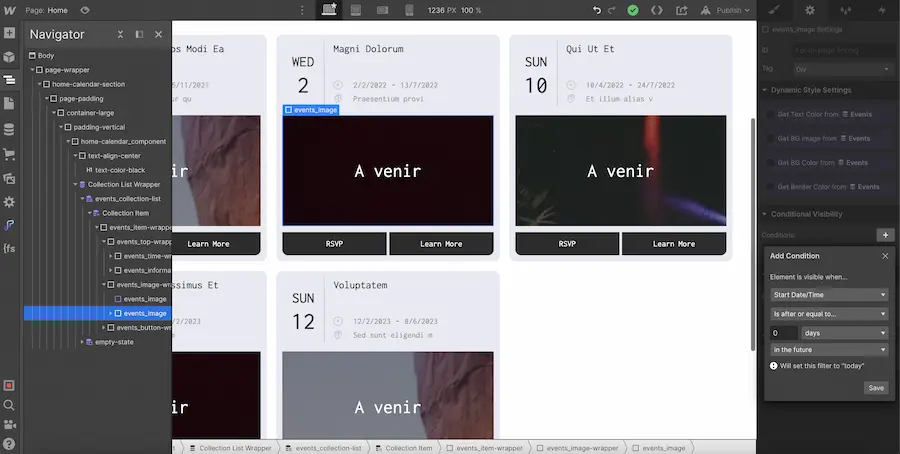
We will now add conditional visibility to display the overlay and text only when the start of our event is in the future.
We go to the settings of our element. We select conditional visibility and then choose our date field (Start Date). Next, we select the option "Is after or equal to..." and then 0 days (to set the condition based on the current date). We will leave the last option untouched as the date value is 0.
You can certainly customize these settings according to your needs.
Is after or equal to means the future period or equal to the value you have set below.
Is before or equal to means the past period or equal to the value you have set below.
For instance, you could create different styles for your items based on whether they are in 1 week, 2 weeks, 1 year, etc.
After saving our conditional visibility, we can see that only the events with a start date in the future display the style with the overlay and text "upcoming".
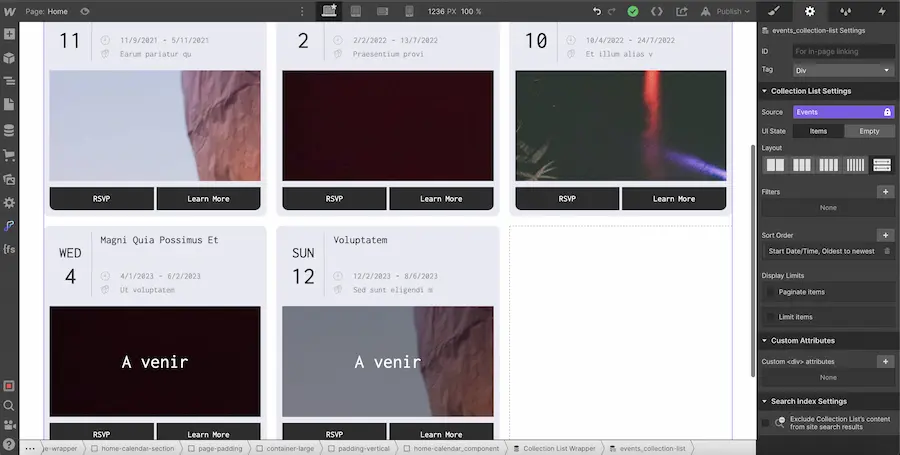
This way, you can easily customize your event collections or even your blog if you wish!
To learn more about Webflow, feel free to pre-register for our NoCode training!
.webp)


.webp)