There are several methods to connect your Webflow site with your Hubspot marketing tool. In this article, we will use the no-code automation tool Zapier to link these two platforms. By using Zapier, you can perform numerous actions to build a powerful marketing strategy.
The Hubspot module in Zapier allows you to carry out dozens of actions to automate your CRM and campaigns:
- Create or update a contact
- Create a company account
- Create a new deal
- Manage engagement
- View new tickets/products/contacts/companies/etc.
- Add a contact to a list
- Create a task in a calendar
- Add a contact to a workflow
- etc.
A very powerful tool combo! Here’s how to connect them.
Step 1. Connect your Webflow account to Zapier
To create a workflow on Zapier, you first need to add a trigger that will initiate the automation:
- instantly after an event
- after an event with a delay
- at regular time intervals
Here we will choose a Webflow module as the trigger. So, start by connecting your Webflow site to Zapier.
- From the Zapier interface, click on "Create Zap"
- In the "Trigger" search bar, search for the Webflow module
- Select the trigger you want to use, for example, "Form Submission"
- Connect your Webflow account
- Choose your Webflow project
- Test your trigger and continue
Step 2. Connect your Hubspot account to Zapier
In this second step, we want to add an action that will be triggered by the Webflow module (Step 1).
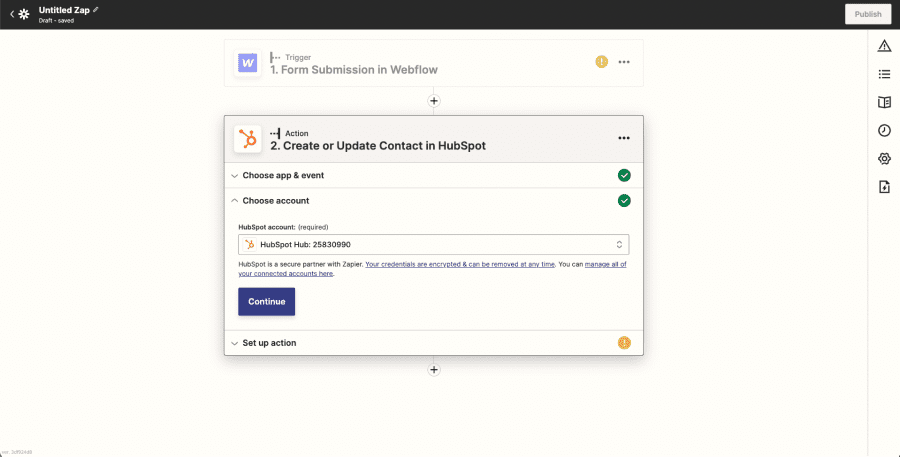
- Search for the Hubspot module
- Choose the event you wish to use, for example, "Create or Update Contact"
- Connect your Hubspot account by clicking on "Sign in". A pop-up will open; you need to enter your Hubspot credentials, select the account you want to link, and grant Zapier access to your account.
- Click "Continue" to move to the setup step
Step 3. Configure your Hubspot account in Zapier
You can now access all Hubspot fields, which you will configure and populate with data from the Webflow module. Mandatory fields are marked with a "Required" label. Only the email field is mandatory to create or update a contact in Hubspot.
- Insert Webflow data into Hubspot fields: click on the field, add the associated Webflow data.
- Customize Hubspot fields: you can directly write in the fields, combining data from previous modules.
- Configure the select fields: you can choose default options for your dropdown lists.
- Click on Continue

Step 4. Test the automation
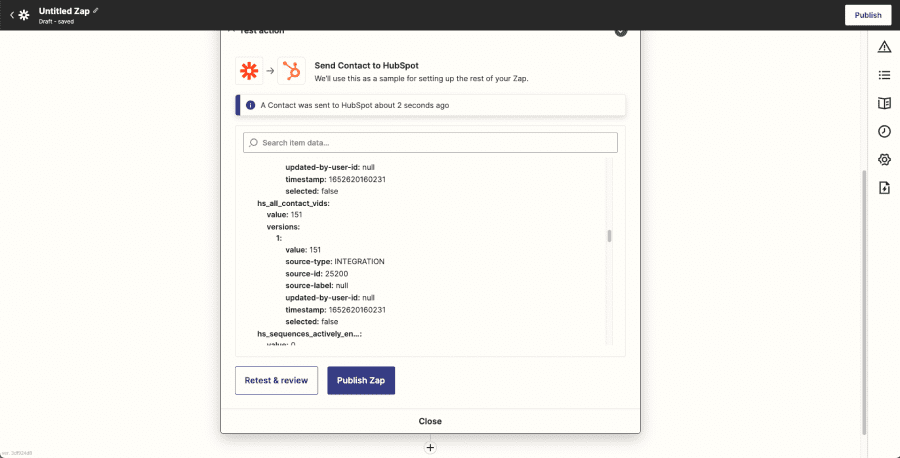
Once the Webflow and Hubspot modules are set up, you can test your automation to ensure that all data transfers correctly to Hubspot. Click "Test & Continue" for this.

Step 5. Activate the automation
If the tests are successful, all you have to do is activate your automation by clicking on "Publish Zap".
You also have the option to retest your automation by pulling in more data. Click on "Retest & Review" for that
.webp)