The RSS feed (Rich Site Summary or Simple Syndication) of a website is a file format that automatically provides access to the latest content published on your site. Typically consisting of titles, content descriptions, images, and URLs related to the most recent updates, the idea is to use the content from this RSS feed to share it online. Automate your blog with this Webflow RSS feed.
Your visitors will be able to subscribe to the content of your website through this data feed. For example, they will have access to content from your blog via email or through RSS applications such as Feedly, Chrome RSS Extension, Feedbin, FeedBurner , etc. It is also possible to automate your email newsletter by connecting Webflow to Brevo (Sendinblue).
Here’s how to create an RSS feed for all your Webflow CMS (blogs, e-commerce articles, etc.) in just 4 steps.
1 - Enable the RSS Feed for your dynamic content
From the Webflow developer interface, click on the gear icon to access the settings in the top right corner. Navigate to your "Collection template" section, and then open the settings for the collection template for which you want to create the RSS feed. Scroll down to the "RSS Feed Settings" section and click the toggle to activate the RSS feed.
.gif)
2 - Configure your RSS feed
Webflow then provides access to all the settings for your RSS feed. Here, you can define the various fields of your feed to optimize the experience for your users.
- Channel Title — This is simply the title of the channel that you will find in the RSS reader. You could use the same title as your blog or website.
- Channel Description — Describe the content you publish to encourage readers: outline the content of your blog or mention the title of your best article, for example.
- Item Title — This refers to the title of each individual item in the RSS feed. For example, it will be the title of each of your articles.
- Item Description — A description that summarizes the content of each individual item in the feed. For example, a brief description of your articles.
- Item Image — Add an image to each of your articles to encourage readers to click through.
- Channel Refresh Time — This is the frequency with which the content of the feed refreshes. In general, readers set their own frequency (averaging around 60 minutes), so it's not necessary to specify it.
.gif)
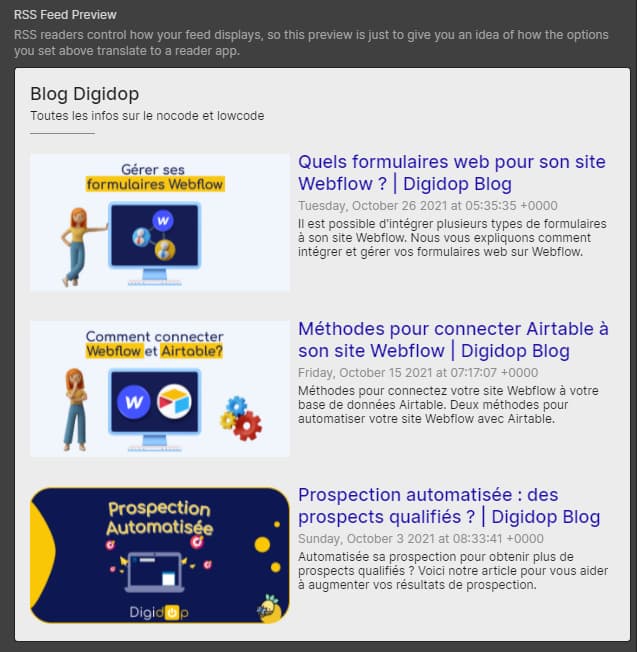
3 - Preview your RSS feed
Once your feed is configured, Webflow provides you with a preview of what will appear in various applications. Check that each element of the feed meets your expectations, and adjust the settings if necessary.
4 - Share your RSS URL
Many applications allow you to share your RSS URL feed and configure your feed. For instance, you can automate your RSS feed with your newsletter by integrating it with Brevo (Sendinblue), Make (Integromat), or Zapier.
Tips 💡 Add an RSS icon to your site to make it easier for visitors to subscribe to your feed!
.gif)
Follow the RSS feed of the Digidop Blog here
.webp)